How to Download Set Up EpocCam Webcam for iPhone & iPad?
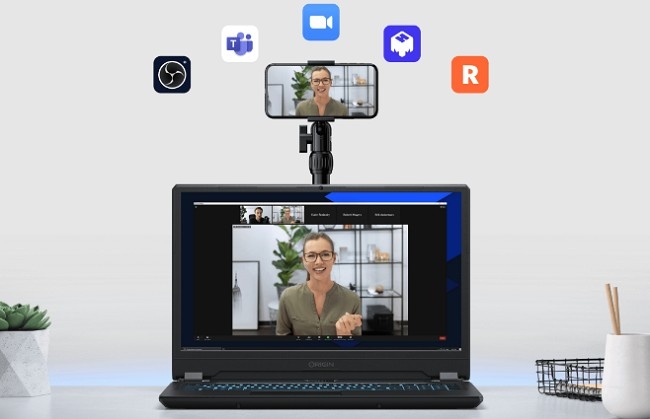
In today’s fast-paced digital world, a high-quality webcam is essential for video calls, online meetings, live streaming, and content creation. While most people rely on dedicated webcams for their computers, EpocCam offers a clever solution — turning your iPhone or iPad into a high-definition webcam for your Mac or Windows PC.
EpocCam transforms your mobile device’s camera into a powerful, easy-to-use webcam with impressive features like wireless connection, HD video quality, and even background effects. Whether you're using it for business calls, online teaching, or live streaming, EpocCam is a versatile tool that maximizes the camera you already carry with you.
In this step-by-step guide, we will walk you through how to install and set up EpocCam on your iPhone or iPad and connect it to your computer. By the end of this article, you’ll have a high-quality webcam ready for your next virtual meeting, livestream, or video call.
What is EpocCam?
Before diving into the installation process, let’s briefly explain what EpocCam is and how it works. EpocCam is a mobile app designed to turn your iPhone or iPad into a high-definition webcam that can be used with your Mac or Windows PC.
This app allows users to leverage the high-quality cameras on modern smartphones and tablets for video calls, livestreaming, and other applications that require a webcam. With EpocCam, you can easily set up your device to work seamlessly with popular video conferencing platforms like Zoom, Skype, Microsoft Teams, and OBS Studio, among others.
Key Features of EpocCam
HD Video Quality (1080p): Provides clear and sharp video during calls and streams.
Wireless Connectivity: Connect your iPhone or iPad via Wi-Fi for seamless, cable-free operation.
USB Connection: Alternatively, you can connect your device via USB for more stable performance.
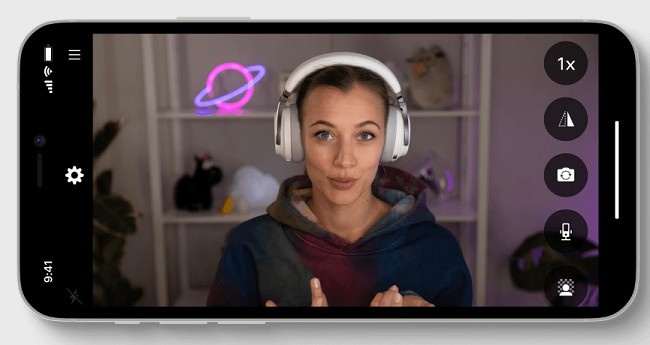
Background Effects: Use built-in features like background blur and chroma key (green screen) in supported apps.
Multiple Camera Angles: Use both the front and rear cameras on your device for different video perspectives.
Snapchat Lenses: Apply fun AR effects, animations, and more.
Let’s explore how you can install and set up EpocCam on your iPhone or iPad.
Step-by-Step Guide: How to Install EpocCam on iPhone & iPad
Step 1: Download the EpocCam App
The first step is to download the EpocCam app from the Apple App Store. Here's how you can do it:
Open the App Store on your iPhone or iPad.
Search for “EpocCam”.
Find the app by Corsair Memory, Inc., the developer of EpocCam.
Tap on the Download button (the cloud icon or "Get" button) to install the app on your device.
The app is available for free, but there is also a premium version that unlocks additional features, such as HD video quality, wireless connection, and AR effects.
Step 2: Install EpocCam Drivers on Your Computer
In order for your Mac or Windows PC to recognize your iPhone or iPad as a webcam, you must install the necessary EpocCam drivers on your computer.
For Windows:
Visit the EpocCam website and download the EpocCam drivers for Windows.
Once the file is downloaded, open the setup file and follow the instructions to install the drivers on your system.
After installation, you may be prompted to restart your computer to complete the process.
For Mac:
Visit the EpocCam website and get the EpocCam Drivers for Mac.
Download the EpocCam drivers for macOS.
Open the downloaded file and follow the on-screen instructions to install the drivers.
Once installation is complete, restart your Mac to finalize the setup.
Connect Your iPhone or iPad to Your Computer
Now that you’ve installed the EpocCam app on your iPhone or iPad and the necessary drivers on your computer, you are ready to connect your device. You can either connect wirelessly via Wi-Fi or use a USB cable for a wired connection.
Option 1: Connect via Wi-Fi (Wireless Setup)
Ensure that both your iPhone or iPad and your Mac/Windows PC are connected to the same Wi-Fi network.
Open the EpocCam app on your iPhone or iPad.
On your computer, open the video conferencing or streaming software that you plan to use (such as Zoom, OBS Studio, Skype, or Microsoft Teams).
In your software's settings, select EpocCam as the video source.
Once selected, your iPhone or iPad should automatically connect to your computer over Wi-Fi, and your mobile device will be used as the webcam.
Option 2: Connect via USB (Wired Setup)
Plug in your iPhone or iPad into your Mac or Windows PC using a compatible USB cable.
Open the EpocCam app on your device.
Open your video software on the computer and select EpocCam as the video source.
Your device will now function as the webcam over USB, offering a more stable connection compared to Wi-Fi.
Configure EpocCam Settings in Video Software
After successfully connecting your iPhone or iPad to your computer, you may need to adjust settings within your chosen video conferencing or streaming software to optimize your video quality. Below are general steps for configuring EpocCam in popular software:
For Zoom:
Open Zoom and go to Settings (click the gear icon in the upper right corner).
Select the Video tab.
Under Camera, select EpocCam from the dropdown list of available cameras.
You can now start a Zoom call using your iPhone or iPad as the webcam.
For OBS Studio:
Open OBS Studio.
In the Sources section, click the "+" button and select Video Capture Device.
In the settings window that appears, select EpocCam from the Device dropdown.
You can adjust settings such as resolution, frame rate, and more.
For Skype:
Open Skype and go to Settings.
Select the Audio & Video section.
Under Camera, choose EpocCam as the video source.
Your iPhone or iPad will now serve as your webcam in Skype.
Adjust Video Settings for Optimal Quality
Once your iPhone or iPad is connected and selected as the webcam, you can enhance the video quality further. Here are a few tips to improve your video:
Resolution: Make sure your software settings are configured for 1080p HD for the best video quality.
Lighting: Ensure you are in a well-lit environment for clearer video.
Background Effects: If you have the premium version of EpocCam, you can enable background blur or chroma key (green screen) effects to make your video look more professional.
Camera Orientation: You can use both the front and rear cameras on your iPhone or iPad, depending on your preference. Tap the camera icon in the EpocCam app to switch between them.
Troubleshooting Tips
If you experience any issues during setup, here are some troubleshooting tips:
EpocCam is not connecting: Ensure that your iPhone/iPad and computer are on the same Wi-Fi network. If you’re using a USB connection, make sure the cable is securely plugged in.
No video feed: Try restarting both the EpocCam app on your device and the video software on your computer. Make sure EpocCam is selected as the camera in your software.
Low-quality video: Check your settings to ensure that 1080p HD resolution is selected. Also, ensure that lighting in the room is good.
Audio issues: If you cannot hear audio or the sound is distorted, make sure the audio settings in your video software are configured correctly. You can either use the phone's microphone or your computer’s microphone.
Conclusion
Setting up EpocCam on your iPhone or iPad is an easy and effective way to enhance your video calls, online teaching sessions, or live streaming experience. By leveraging the powerful camera on your device, you can achieve high-definition video quality with features like background blur, chroma key, and wireless connection — all without the need for an expensive webcam.
This guide has provided you with detailed, step-by-step instructions on how to download, install, and configure EpocCam on your iPhone or iPad, as well as how to use it in popular video software like Zoom, Skype, and OBS Studio. Whether you choose to connect wirelessly via Wi-Fi or with a stable USB cable, EpocCam offers a simple and reliable webcam solution for all your video needs.
With just a few steps, you can start using your iPhone or iPad as a high-quality webcam and enjoy seamless video communication on your computer.